

Google Search Console: Complete Setup and Ultimate Guide for SEO, GEO & AI in 2026
 Catalin Dinca
Most websites have Google Search Console connected. Far fewer actually use it. That gap, between having access to the data and knowing what to do with it, is where rankings are won or lost.
In 2026, GSC has expanded beyond traditional search reporting. It now surfaces data across classic organic results, AI Overviews, and AI Mode, making it the most important free tool in any SEO stack. This guide walks through everything you need, from initial setup to the specific reports that reveal what is holding your site back.
What Google Search Console Actually Is
Google Search Console is a free platform that shows you how Google sees, crawls, indexes, and ranks your website. It is the closest thing to a direct line of communication between your site and Google's systems.
At a practical level, GSC answers the questions that matter most:
- Which pages has Google indexed, and which has it not?
- What search queries are bringing users to your site?
- How is your site performing across traditional results, AI Overviews, and AI Mode?
- Where are technical issues preventing pages from ranking?
- Has your site received a manual penalty?
As AI-powered search features expand, GSC is increasingly the tool that reveals whether your content is being surfaced in AI-generated answers, not just traditional blue links. Understanding it is no longer optional. It is foundational.
Setting Up Google Search Console
Choosing Your Property Type
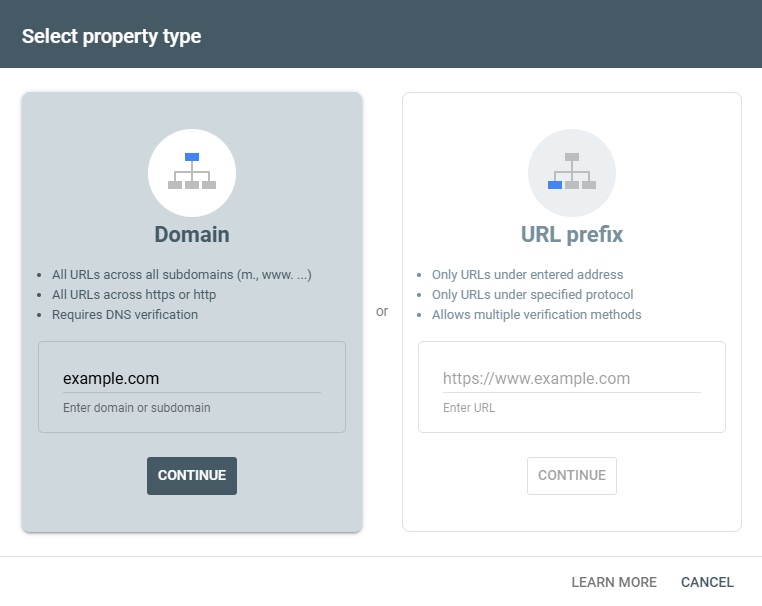
When you add a website to GSC, you choose between two property types: domain property or URL prefix property.
A domain property covers everything, all protocols (http and https), all subdomains (www and non-www), and all paths. It gives you the most complete picture of your site's performance. Verification requires access to your DNS settings, which means adding a TXT record through your domain registrar.
A URL prefix property covers a specific URL and path, such as https://www.yoursite.com/blog/. It is useful when you need to track a specific section of a site separately. Verification is more flexible: you can use an HTML file upload, an HTML meta tag, Google Analytics, Google Tag Manager, or DNS.
For most use cases, a domain property is the right choice. It eliminates blind spots that URL prefix properties create.
Verifying Your Domain Property
To add a domain property, go to Search Console, select "Domain" in the property setup screen, and enter your root domain without any protocol prefix, for example, yoursite.com rather than https://www.yoursite.com.
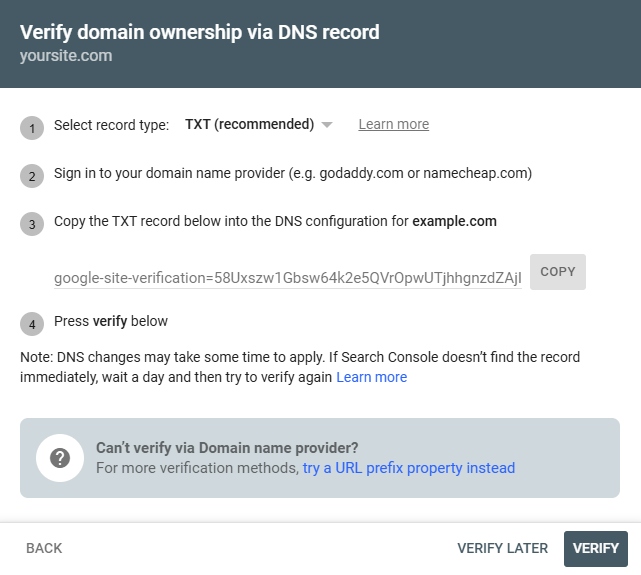
Google provides a TXT record that you add to your DNS configuration. The exact process depends on your domain registrar, but the principle is the same: log into your registrar's DNS management panel, add a new TXT record with the value provided by GSC, save, and return to Search Console to verify.
DNS changes can take a few minutes to 48 hours to propagate. If verification fails on the first attempt, wait an hour and try again.
Tip for Cloudflare users: If your domain's nameservers point to Cloudflare, you can verify ownership directly in the Cloudflare dashboard, no need to open your domain registrar's DNS panel. Simply add the GSC TXT record via the DNS tab in your Cloudflare account and Cloudflare will propagate it instantly.
Managing Users and Permissions
GSC has two primary roles: owners and users. Owners, both verified and delegated, have full control over the property. Users have more limited access depending on whether they are designated as full users or restricted users.
To add a new user, navigate to Settings > Users and Permissions, click Add User, enter their email address, and assign an access level. This is particularly relevant for agencies managing client accounts or teams where multiple people need access to the same data.
Adding Your Sitemap
Once your property is verified, submitting your sitemap is the next priority. A sitemap tells Google which pages you want crawled and indexed, making the process more efficient, especially for large sites or sites with pages that are not well-linked internally.
To submit a sitemap, navigate to Sitemaps in the left-hand sidebar, enter the URL of your XML sitemap, and click Submit. GSC will show a status indicating whether the sitemap was processed successfully, has errors, or could not be fetched.
A sitemap submission does not guarantee indexing. Google still decides which pages to index based on quality and relevance signals. But it removes the discovery friction that can slow down indexing on larger sites.
The Reports That Matter
Performance Report: Your Search Visibility Dashboard
The Performance report is the starting point for almost every GSC analysis. It shows four core metrics: total clicks, total impressions, average click-through rate (CTR), and average position across all search results, including traditional organic listings, AI Overviews, and AI Mode.
One critical nuance in 2026: GSC does not yet separate AI Overview and AI Mode metrics from traditional search metrics in the main Performance report. This means your impression and click data reflects a blended view across all Google search surfaces. When organic CTR appears lower than expected, it may partly reflect zero-click behavior from AI Overviews, not a pure decline in your traditional rankings.
The table below the main chart breaks performance down by queries, pages, countries, and devices. This is where the most actionable insights live:
Queries show which search terms are generating impressions and clicks. Look for high-impression, low-CTR keywords, these represent pages that Google is surfacing but users are not clicking. Often, this signals that your title tag or meta description is not competitive enough.
Pages show which URLs are performing. A page accumulating impressions but few clicks may need a stronger, more intent-aligned title. A page dropping in clicks despite stable rankings may be losing ground to AI Overview entries that answer the query directly.
Countries and Devices help you understand where your audience is and how they're searching. Mobile-dominant traffic with poor Core Web Vitals is a compounding problem worth addressing quickly.
URL Inspection Tool: Understanding How Google Sees a Page
The URL Inspection tool answers a specific and important question: what does Google actually know about this page right now?
Paste any URL from your property into the inspection bar and you get the current index status, the last crawl date, whether structured data is present and error-free, and whether the page is eligible to appear in search results. You can also trigger a live test, which shows how Googlebot currently renders the page, including a visual screenshot of what Google sees.
This tool is particularly useful when:
- A new page is not appearing in search results despite being published weeks ago
- A page was updated significantly and you want Google to recrawl it sooner
- You suspect a rendering issue is preventing Google from seeing your content correctly
After diagnosing an issue and fixing it, you can use "Request Indexing" to prompt Google to recrawl the URL. This does not guarantee immediate indexing, but it accelerates the process.
Page Indexing Report: Finding and Fixing Coverage Problems
The Page Indexing report separates your pages into indexed and non-indexed buckets, with detailed reasons for why specific pages are not in Google's index.
Common reasons for non-indexing include pages blocked by robots.txt, pages with noindex directives, pages returning server errors, pages marked as duplicate content, and pages that have been discovered but not yet crawled. Each reason has different implications and different fixes.
A sudden drop in indexed pages is one of the most urgent signals in GSC. It can indicate a robots.txt change that accidentally blocked large sections of the site, a server issue causing widespread 404 or 5xx errors, or a canonical tag misconfiguration pushing pages out of the index.
After fixing any issue identified in this report, use the "Validate Fix" button to notify Google that the problem has been resolved and trigger re-evaluation.
Core Web Vitals Report: Page Experience as a Ranking Signal
Core Web Vitals measure three dimensions of page experience: Largest Contentful Paint (LCP), which tracks how fast the main content loads; Interaction to Next Paint (INP), which measures responsiveness to user input; and Cumulative Layout Shift (CLS), which tracks visual stability as the page loads.
The Core Web Vitals report groups pages into Good, Needs Improvement, and Poor categories based on real user data. This is field data, collected from actual visits, not lab measurements, which means it reflects the experience your real users are having.
Pages in the "Poor" category have a measurable disadvantage in competitive search results. In markets where multiple pages satisfy the same query well, Core Web Vitals can be the differentiating signal.
After fixing performance issues identified in the report, click "Validate Fix" to request re-evaluation. Because Core Web Vitals data is based on real user interactions collected over time, improvements may take weeks to appear in the report.
Manual Actions Report: Detecting Penalties
The Manual Actions report is the first place to check if your site has experienced an unexplained, sudden drop in visibility. Manual actions are human-applied penalties for violations of Google's spam policies, and they can suppress rankings dramatically or remove a site from search results entirely.
If the report shows "No issues detected," you can rule out a manual penalty as the cause of any visibility drop. If issues are listed, each penalty includes a description and a link to guidance on how to address it. After addressing the underlying issue, you can submit a reconsideration request to Google.
Links Report: Your Backlink and Internal Link Profile
The Links report provides data on both external links (backlinks from other domains) and internal links (links between pages on your own site).
For external links, the report shows total backlink count, top linked pages, top linking domains, and common anchor text. This data is useful for understanding which pages carry the most external authority and which domains are linking to you most frequently.
For internal links, the report shows which pages receive the most internal links. Pages with strong internal link counts tend to accumulate more authority and rank more easily. Pages that are internally isolated, receiving few or no internal links, are harder for Google to discover and harder to rank.
The Links report in GSC is not a replacement for dedicated backlink analysis tools, but it provides a reliable baseline directly from Google's own index.
Connecting GSC Data to AI Visibility Strategy
In 2026, the insights from Google Search Console do not exist in isolation. They are inputs into a broader visibility strategy that spans traditional SEO, Generative Engine Optimization (GEO), and Answer Engine Optimization (AEO).
Pages that perform well in traditional search, with strong CTR, low bounce rates, and stable rankings, are more likely to be cited in AI Overviews and generative engine responses. The correlation between traditional ranking authority and AI citation likelihood is strong for Google's own AI features, even if it is weaker for external platforms like ChatGPT and Perplexity.
At FluxSERP, we analyze both traditional GSC performance data and AI visibility signals together, giving you a unified picture of where your content is succeeding and where it is losing ground, whether to competitors in organic search or to AI-generated answers that absorb clicks without attribution.
When you identify a high-impression, low-CTR page in GSC, the right question in 2026 is not just "how do I improve my title tag?" It is also "is an AI Overview absorbing the clicks that should be coming to this page, and if so, how do I become the source that AI Overview is citing?"
A Practical GSC Workflow for 2026
Rather than treating GSC as a reporting tool you check occasionally, the most effective approach is to build it into a regular workflow:
Weekly: Check the Performance report for sudden impression or CTR drops. Review the Page Indexing report for new non-indexing issues. Check the Manual Actions report if any unexplained visibility drop has occurred.
Monthly: Audit Core Web Vitals trends and prioritize pages in the "Poor" category. Review the Links report for unexpected drops in backlink count. Check Sitemaps for any fetch errors on recently submitted pages.
After major site changes: Use the URL Inspection tool to verify that updated or new pages are being crawled correctly. Request indexing for high-priority URLs after significant updates. Check the Enhancements section for any structured data errors introduced during development.
Final Thoughts
Google Search Console is the most underused powerful tool in digital marketing. Most teams connect it, glance at it occasionally, and leave significant insights untapped.
In 2026, using GSC properly means understanding not just how your pages rank in traditional search, but how they are being surfaced, or not surfaced, across AI Overviews, AI Mode, and the broader AI search ecosystem. The data is there. The question is whether you are acting on it.
If you want to connect your GSC data to a broader AI visibility and content strategy, FluxSERP combines real-time SERP analysis with AI citation tracking, helping you understand exactly where your content stands across all search surfaces, and what to do about it.

Catalin Dinca
Written by Catalin Dinca